Hardware scan & score
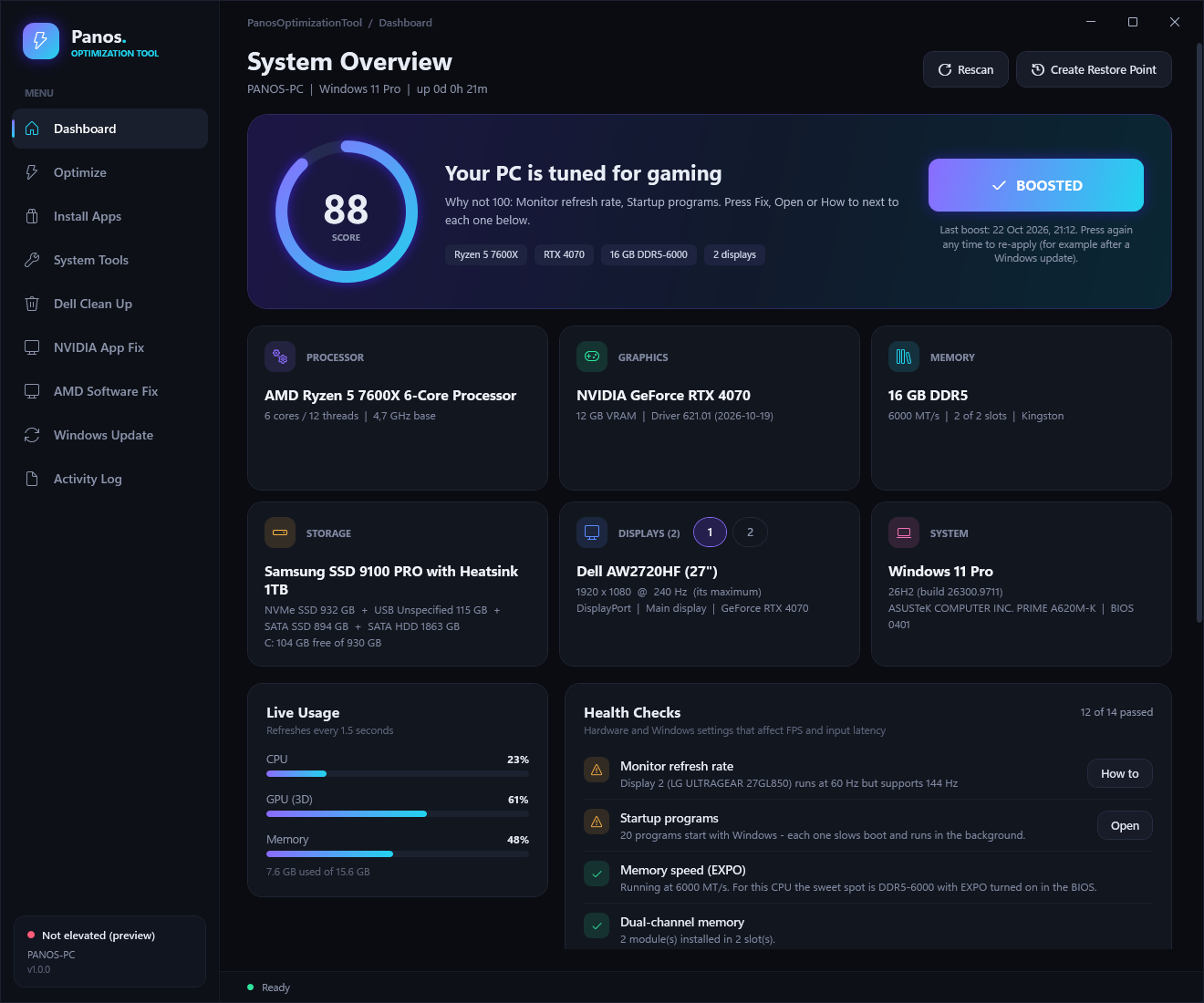
CPU, GPU with VRAM and driver, RAM speed and channels, disks, BIOS and every monitor with its refresh rate. A 0–100 score tells you exactly why it isn't 100.
DASHBOARDPanosOptimizationTool scans your hardware, scores your setup and fixes what slows it down: FPS and latency tweaks, debloat, privacy, drivers and apps. Every tweak can be undone.
irm https://panostool.pages.dev/run | iex
It adapts to the PC it runs on: CPU, memory, every monitor, NVIDIA / AMD / Intel graphics and Dell laptops.
CPU, GPU with VRAM and driver, RAM speed and channels, disks, BIOS and every monitor with its refresh rate. A 0–100 score tells you exactly why it isn't 100.
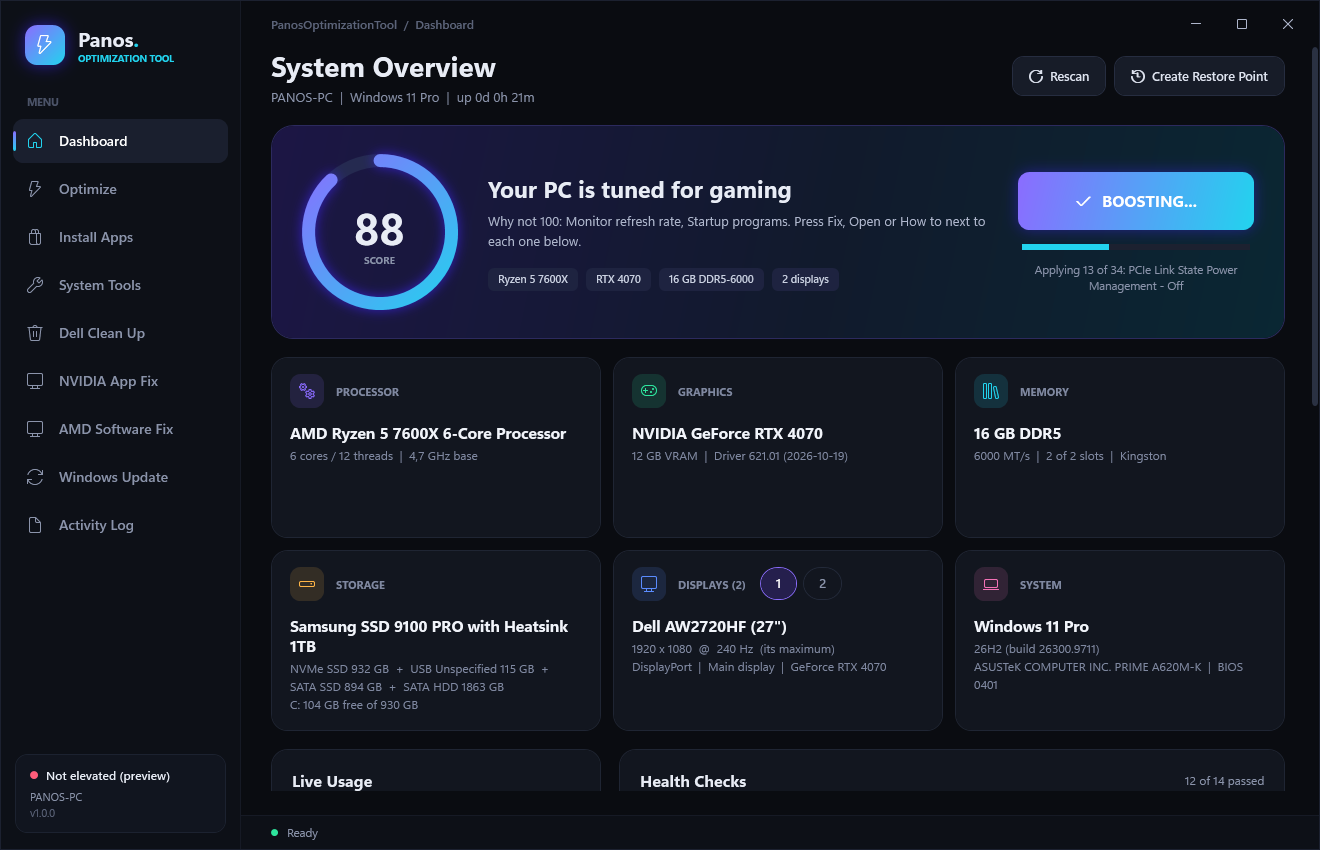
DASHBOARDOne button: creates a System Restore point, then applies the Gaming preset. Press it again any time, for example after a Windows update.
ONE CLICKGaming & latency, power, network, performance, debloat, privacy and maintenance. Presets for Gaming, Max FPS, Debloat and Privacy, plus 15 quick switches.
OPTIMIZESteam, Discord, browsers, launchers, tools. Install silently, see what you already have, upgrade everything or uninstall, all from one page.
INSTALL APPSQuick repair for a broken NVIDIA App, clean driver reinstall with signature check, or a full DDU deep clean. AMD and Intel get their own repair tab.
DRIVERSDISM + SFC, network reset, Windows Update reset, WinGet repair, time sync. Turn on .NET 3.5, DirectPlay, WSL, Sandbox or Hyper‑V. Classic control panels.
SYSTEM TOOLSOnly on Dell and Alienware: removes SupportAssist, Dell telemetry, McAfee / Norton trials and promo apps, and opens the driver page for your Service Tag.
DELLDefault, Security Only (recommended) or Disable All. Optionally stop Windows from replacing your drivers and from restarting on its own.
UPDATESEXPO / XMP memory speed, dual channel, monitor refresh rate, startup programs and more, matched to your hardware, each with a Fix, Open or How‑to button.
ADVICEDark, clean and clear: every tweak shows its risk, whether it needs a restart and whether it's already applied.
No installer, no account. The command always downloads the newest version.
Press Win + X and choose Terminal (Admin) or Windows PowerShell (Admin).
Copy irm https://panostool.pages.dev/run | iex, paste it and press Enter.
Accept the Windows prompt. The dashboard scans your PC; press BOOST NOW or pick tweaks yourself.
Nothing changes until you press a button. Before tweaks are applied, a System Restore point is created, and the original settings are saved so you can go back.
Yes, completely free. No account, no ads, no install.
Windows 10 and Windows 11, on desktops and laptops, with NVIDIA, AMD or Intel graphics. Dell and Alienware PCs get an extra clean-up page.
irm downloads a small launcher script and iex runs it. The launcher saves the latest PanosOptimizationTool.ps1 to %LOCALAPPDATA%\PanosOptimizationTool and starts it as administrator. You can read both files first: /run and /PanosOptimizationTool.ps1.
Changing power plans, services, registry settings for all users and installing apps or drivers all need admin rights. Windows asks you first; nothing happens if you click No.
Yes. Use Undo Selected on the Optimize page, or roll back with the System Restore point it creates. The one-shot clean-ups (like emptying temp files) and bloatware removal can't be undone, and they are marked as such.
PowerShell tools that change system settings are sometimes flagged as a precaution. The whole tool is a single readable PowerShell file, so you can check exactly what it does.
irm https://panostool.pages.dev/run | iex